> For the complete documentation index, see [llms.txt](https://docs.optis.me/llms.txt). Markdown versions of documentation pages are available by appending `.md` to page URLs; this page is available as [Markdown](https://docs.optis.me/swatch/variant-images/advanced-settings.md).
# Advanced Settings
## Theme Section
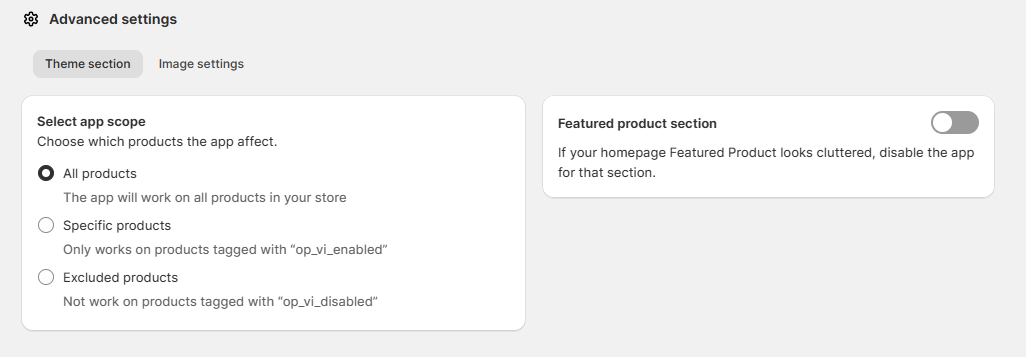
### 📦 Select app scope
* **All products:** The feature works on all products in your store.
👉 Recommended if most of your products use variants with multiple images.
* **Specific products:** The feature only works on products tagged with `op_vi_enabled`.
👉 Use this if you want to enable Variant Images only for selected products.
* **Excluded products:** The feature does **not** work on products tagged with `op_vi_disabled`.
👉 Use this if you want to exclude certain products while keeping the feature active for the rest of your store.
### Featured product section
Some themes display products in a **Featured Product** section (for example, on the homepage).
* ✅ Enable this option if you want Variant Images to apply to the Featured Product section.
* ❌ Disable it if the image gallery looks cluttered or conflicts with your theme layout.
> This setting does **not** affect the main product page.
## Images Setting - Common Images & Featured Image behavior
### Common Images
**Common Images** allow you to add images that are shared across all variants, such as lifestyle photos, size guides, or informational visuals.
How it works:
* Common Images are always placed **at the beginning of the product image gallery**, before any variant-specific images.
* The **first image** in the Common Images list automatically becomes the product’s **Featured Image** in Shopify.
🎥 **Video tutorial:**
{% embed url="" %}
### Skip Featured Image
When **Skip Featured Image** is enabled:
* 🖼️ The **featured image (first Common Image) will NOT appear in the product image gallery**
* 🚫 This image is **skipped entirely from Common Images**
* 📦 It **does not show on the product page gallery at all**
**✅ What still happens:**
* The image **can still be used as the product’s featured image**
* It will **show on collection pages, homepage sections, and anywhere your theme displays the product grid**.
**🎯 Why use this?**
* Keep the **product page gallery clean**
* Avoid showing a **generic or marketing image** inside the gallery
* Let customers focus only on **variant-specific images** on the product page
✨ **In short:** The image is used for **listing & preview**, but **hidden from the product page gallery**.
🎥 **Video tutorial:**
{% embed url="" %}
{% hint style="info" %}
Related questions: [How can I set common images for all variants?](/swatch/variant-images/common-questions/how-can-i-set-common-images-for-all-variants.md) · [When should I use Skip Featured Image?](/swatch/variant-images/common-questions/when-should-i-use-skip-featured-image.md) · [How do I use a Featured Image for collection pages but hide it from the product page gallery?](/swatch/variant-images/common-questions/how-do-i-use-a-featured-image-for-collection-pages-but-hide-it-from-the-product-page-gallery.md)
{% endhint %}
💬 If this doesn’t work as expected with your theme, please feel free to contact our support team - we’re happy to help