> For the complete documentation index, see [llms.txt](https://docs.optis.me/llms.txt). Markdown versions of documentation pages are available by appending `.md` to page URLs; this page is available as [Markdown](https://docs.optis.me/swatch/product-groups/show-separate-products-as-variants-with-product-groups.md).
# Show Separate Products as Variants with Product Groups
### **📌 What is Product Groups?**
* Product Groups let you **combine multiple separate products into 1 product page (PDP)**.
* Each product in the group will **appear as a variant option**. When customers select that option, the PDP will **redirect to the correct product page** with its own images, price, and details.
**Example:** You sell three separate products: a **blue shirt**, a **red shirt**, and a **navy shirt**. With Product Groups, they can all appear on **one PDP**. Shoppers choose *Blue / Red / Navy* like variant options, and the page switches to the correct product.
**View demo here:** [Link](https://optis-color-swatch-variant.myshopify.com/pages/product-groups)
### **🎯 Why use Product Groups?**
* **Cleaner storefront**: Show related products together instead of splitting them into many pages.
* **Better shopping experience**: Customers can switch colors/styles without leaving the PDP.
* **Accurate details**: Each product still keeps its own price, SKU, and options.
### **⚙️ How to set up a Product Group**
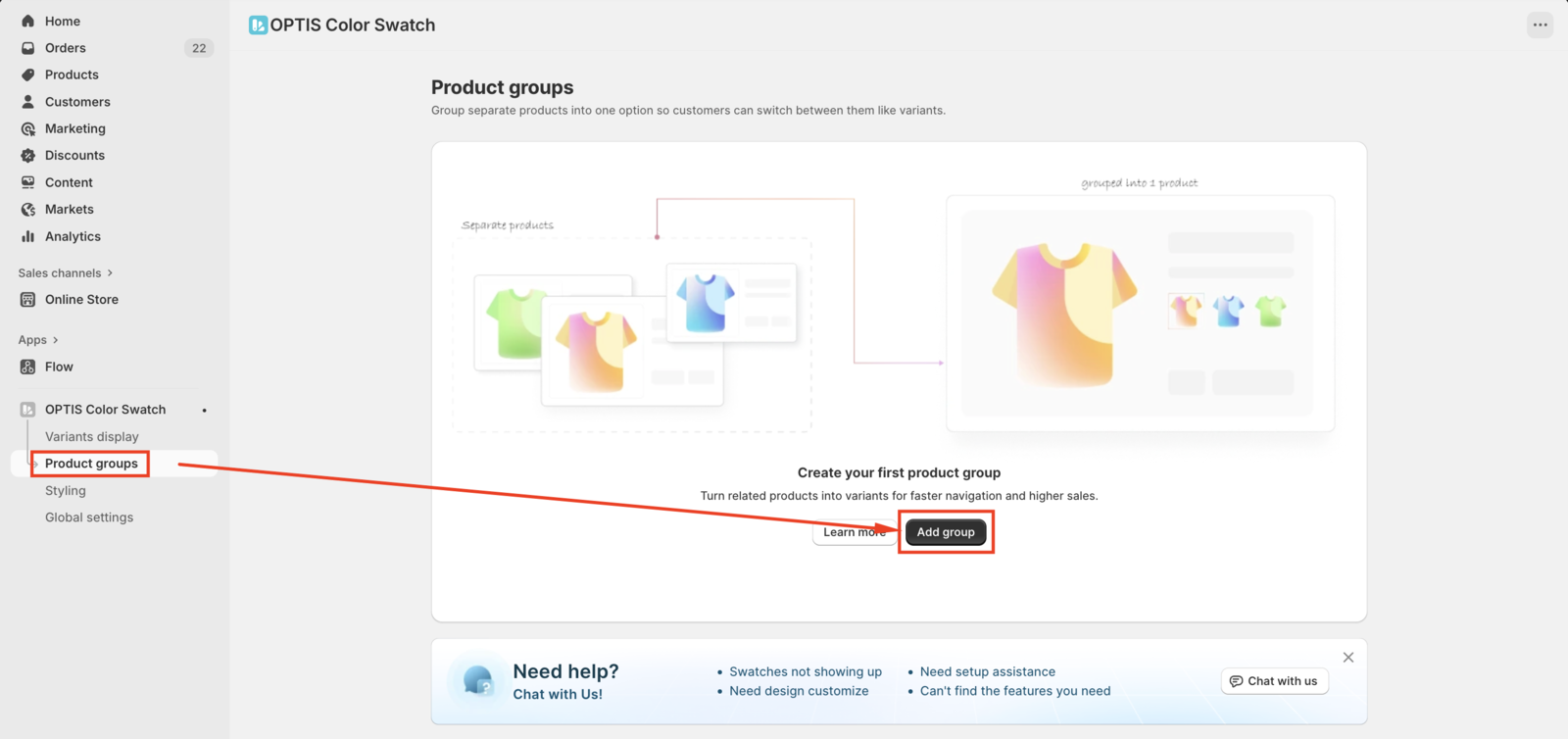
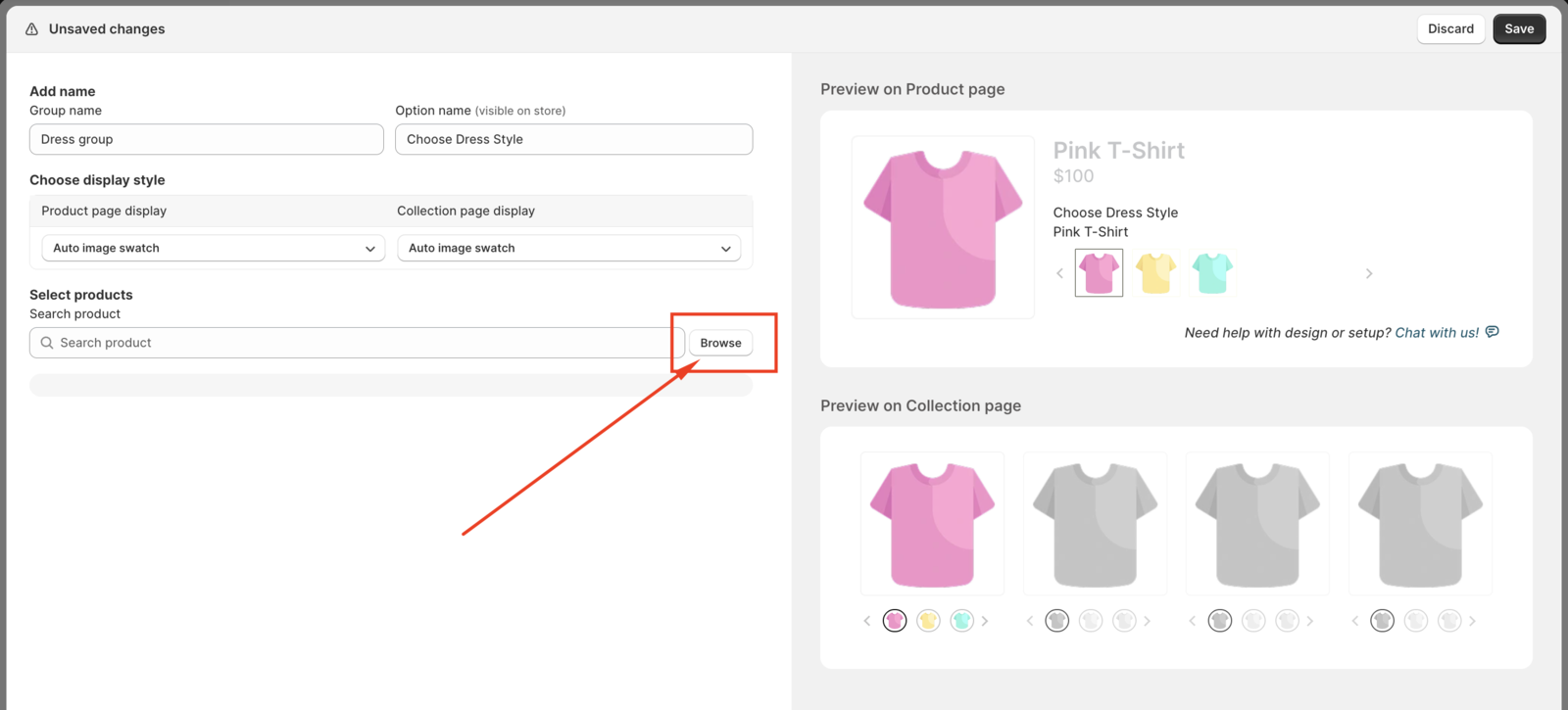
1. Go to **Product groups**. Click **Add group**
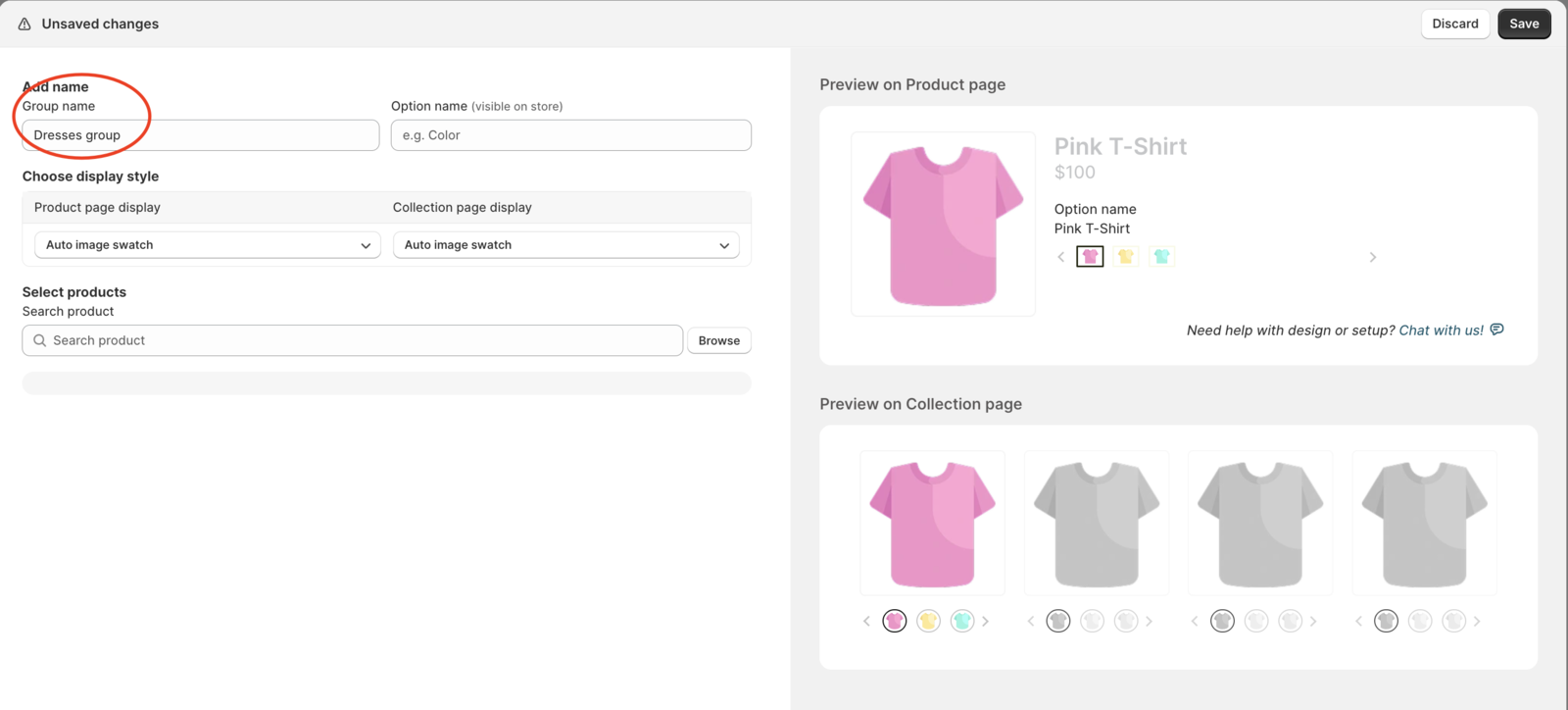
2. **Enter a Group Name** (e.g., *Dresses group*).
* The Group Name is only used internally to help you organize and identify your groups.
* It will **not be shown on the storefront**.
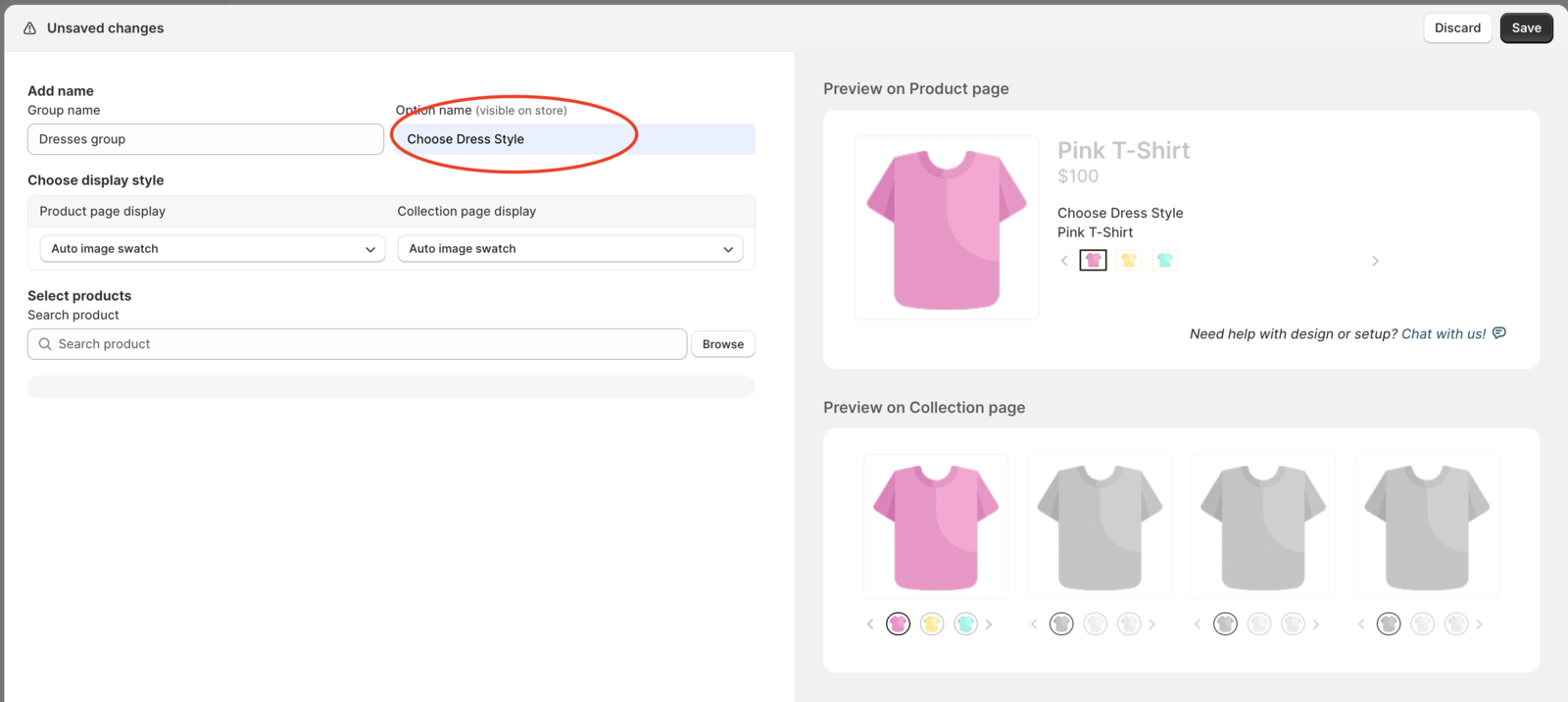
3. **Enter an Option Name** (e.g., *Choose Dress Style*).
* This is the name that customers will see on the storefront.
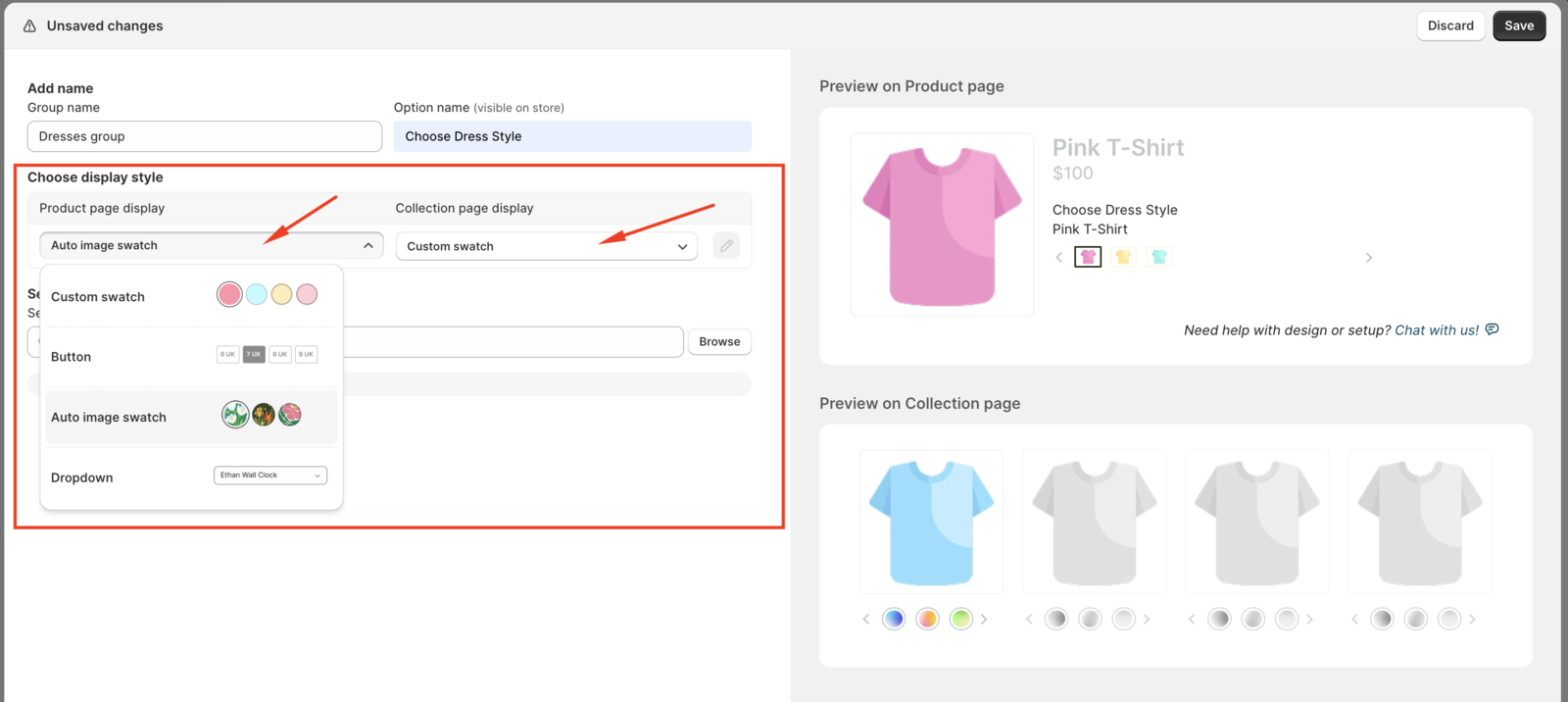
4. **Choose a Display Style** for how the option will appear (e.g., buttons, swatches) on Product page and Collection page.
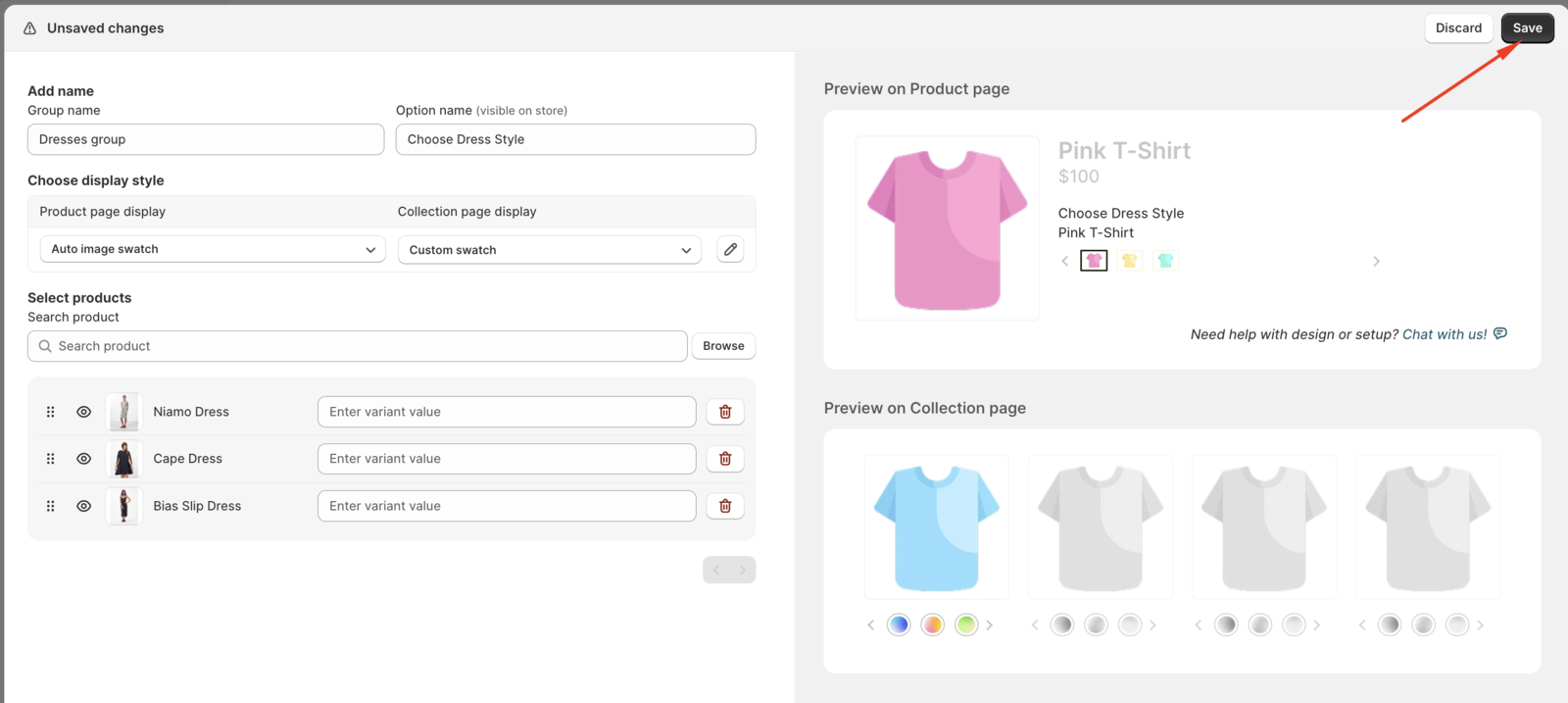
5. **Add products to the group**
6. Enter variant value (Optional)
7. Click **Save** to finish.
### See also
* [Product Group sub-categories](/swatch/product-groups/product-group-sub-categories.md) — split a large group into named buckets.
* [Bulk create Product Groups](/swatch/product-groups/bulk-create-product-groups.md) — create many groups at once from a name pattern, tag, or metafield.
* [Export Product Groups to CSV](/swatch/product-groups/export-product-groups-to-csv.md) — download every group as a spreadsheet.
{% hint style="info" %}
The search box on the Product Groups list also matches by **product name**, not just the group name.
{% endhint %}