> For the complete documentation index, see [llms.txt](https://docs.optis.me/llms.txt). Markdown versions of documentation pages are available by appending `.md` to page URLs; this page is available as [Markdown](https://docs.optis.me/swatch/global-settings/hide-single-variant.md).
# Hide single variant
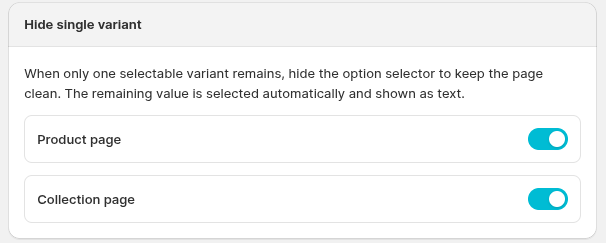
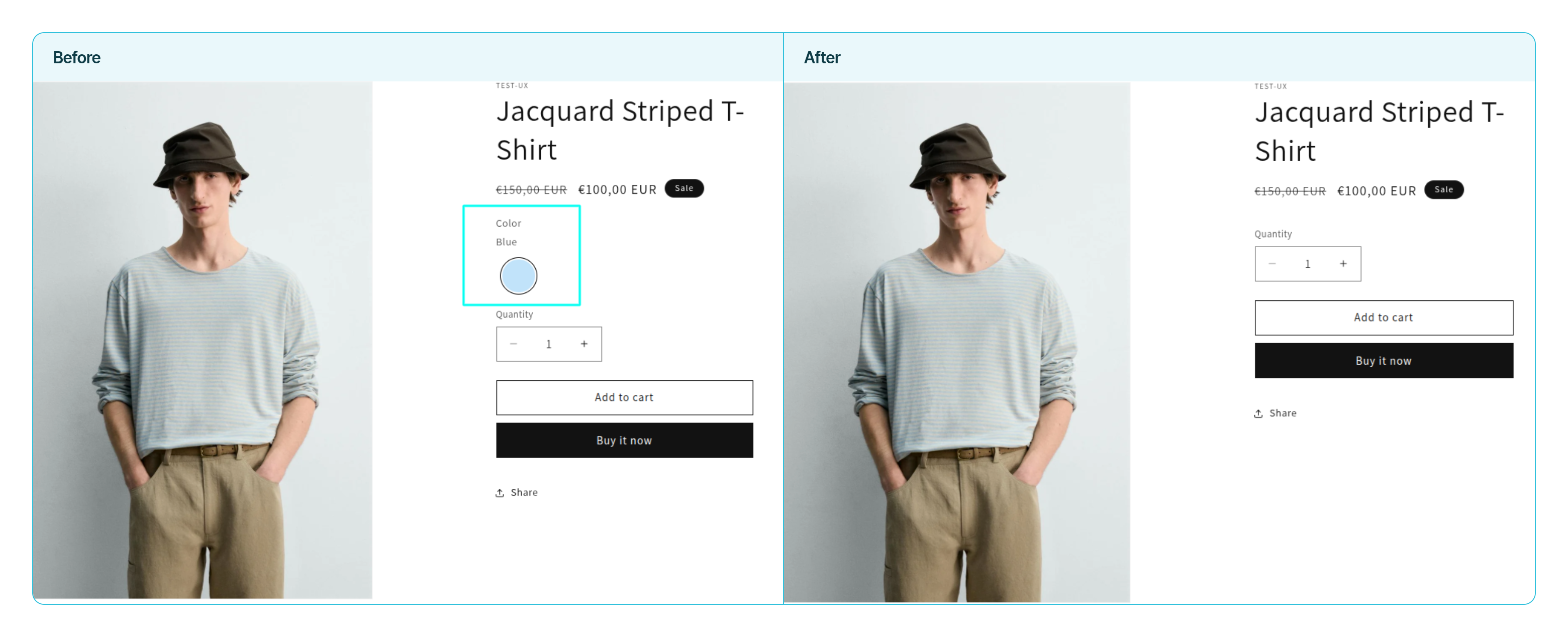
This setting in **Global settings** hides the option selector when an option only has one selectable value.
## What it does
* When enabled, option selectors are hidden if an option has only one available value.
* The remaining value is still shown as read-only text so customers can see what is selected.
* This setting is available separately for the **Product page** and the **Collection page**.
## How it works
* If the product has only one variant/combo, the option name and selector are hidden completely.
* If multiple combinations exist but only one remains selectable after hiding out-of-stock variants, the option name and selected value are shown as text and the selector is hidden.
* If more than one selectable variant remains, the selector is shown normally.
## Use cases
### Single variant available
When a product has only one option value or only one created combination, the selector is hidden entirely.
Example:
* Color: Blue
-> Variant: Blue
### Multiple options with a single created combination
If the product has multiple option rows but only one variant combination exists, all selectors are hidden.
Example:
* Color: Blue
* Size: S
-> Variants: Blue / S
### Only one selectable variant after hiding out-of-stock values
When Hide OOS removes unavailable variants and leaves exactly one selectable option, the option row is displayed as read-only text.
Example:
* Color: Blue ✅, Red ❌
* Result: show `Color: Blue` as text and hide the selector.
## Special scenarios
### Combination availability after Hide OOS
When only one combination remains available after Hide OOS, the selected values are shown as read-only text for each option, and selectors are hidden to keep the UI clean.
Example:
* Options: Color (Blue, Red), Size (S, M)
* Available after Hide OOS: Blue / S only
* Result: show `Color: Blue` and `Size: S` as text, hide the selectors.
### Multiple available combinations after Hide OOS
If more than one combination is still available, only the options with a single remaining value are shown as text; other selectors remain visible.
Example:
* Available after Hide OOS: Blue / S and Red / S
* Result: show `Size: S` as text, keep the Color selector visible.
### Product Group
If a grouped product has only one variant, the selector for that product is hidden.