> For the complete documentation index, see [llms.txt](https://docs.optis.me/llms.txt). Markdown versions of documentation pages are available by appending `.md` to page URLs; this page is available as [Markdown](https://docs.optis.me/swatch/getting-started/quickstart.md).
# Quickstart
{% stepper %}
{% step %}
### Activate the app
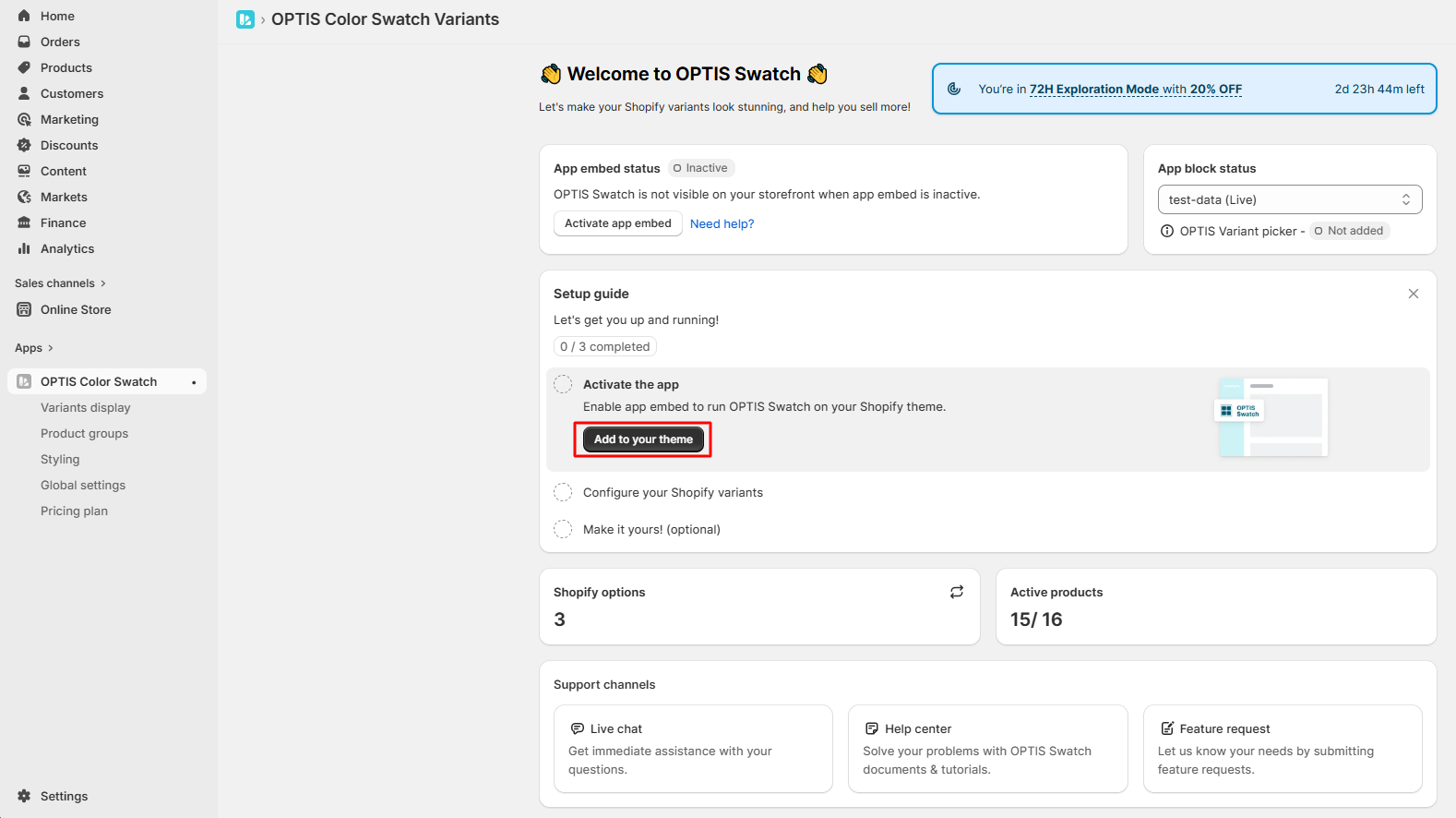
* In the **App Dashboard**, go to **Setup Guide** → click **Activate the app**
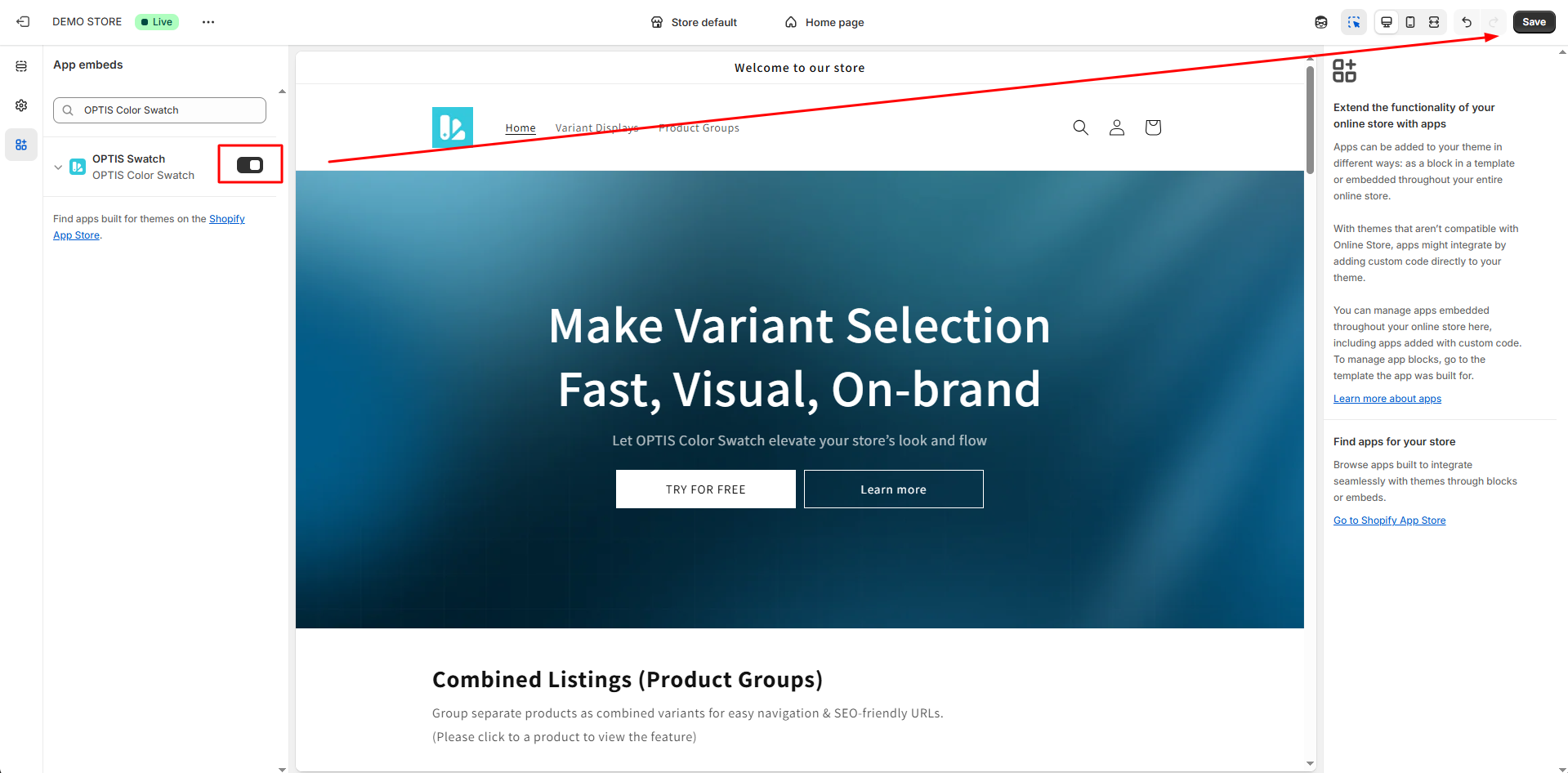
→ You’ll be redirected to **App Embed** in the Shopify Theme Editor
* Turn on the toggle and click **Save**
{% hint style="warning" %}
**Optional (Recommended for testing):** If you want to enable the app on a draft theme instead, go to **Online Store → Themes → Edit theme (selected theme) → App embeds**, then enable the **OPTIS Swatch** app toggle and click **Save**.
*This allows you to fully test the app without affecting your live store.*
{% endhint %}
{% endstep %}
{% step %}
### Configure your Shopify variants
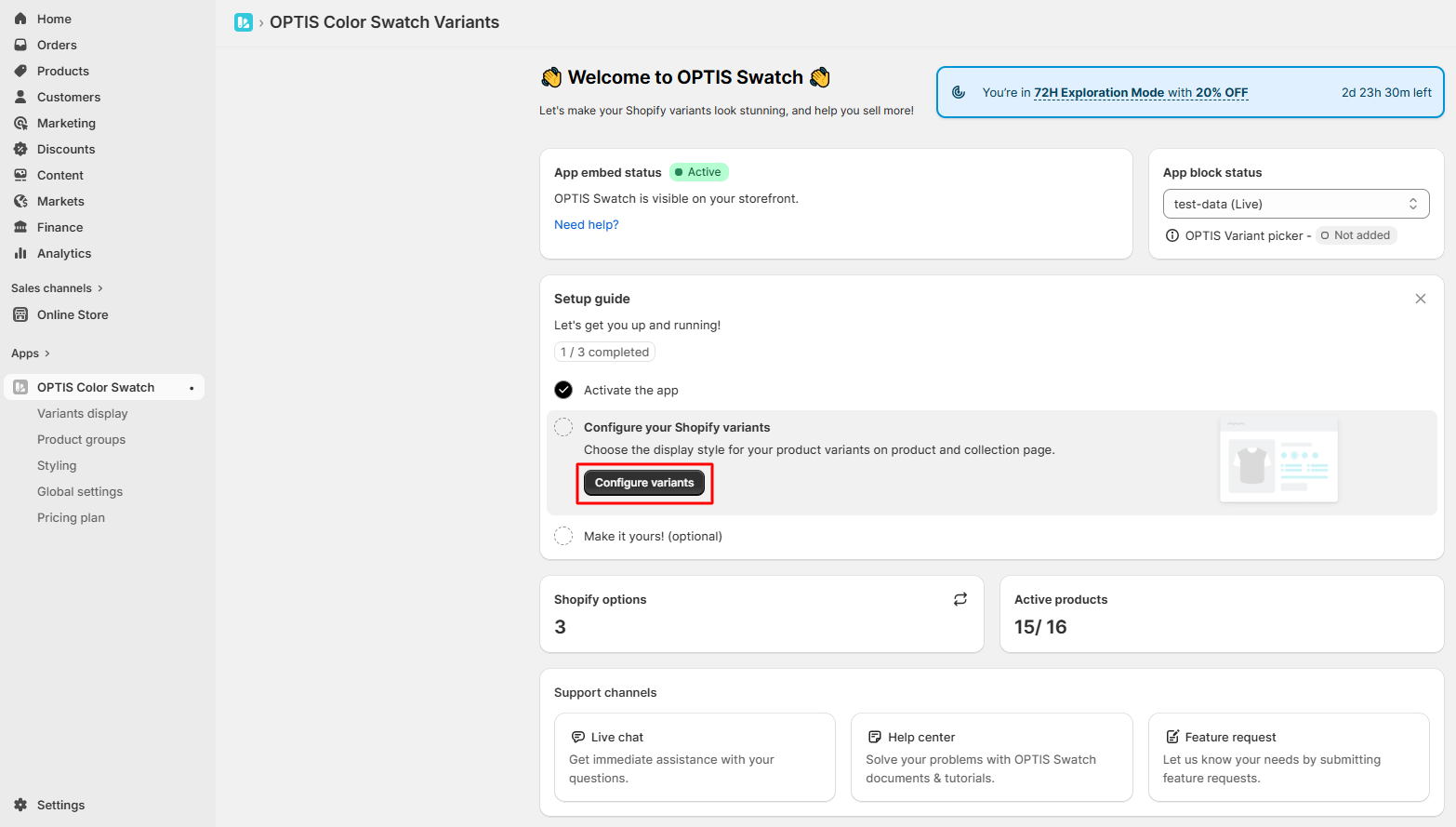
* Make sure your products have variants (e.g. Color, Size) → Click **Configure variants** to open **Variants Display**
* Here, you can customize how variants are displayed on Product pages and Collection pages - Choose the display type that fits your store design
👉 **Click here to learn** [**How to change the variant display**](/swatch/variant-display/auto-image-swatch.md)
{% endstep %}
{% step %}
### Make it yours! (optional)
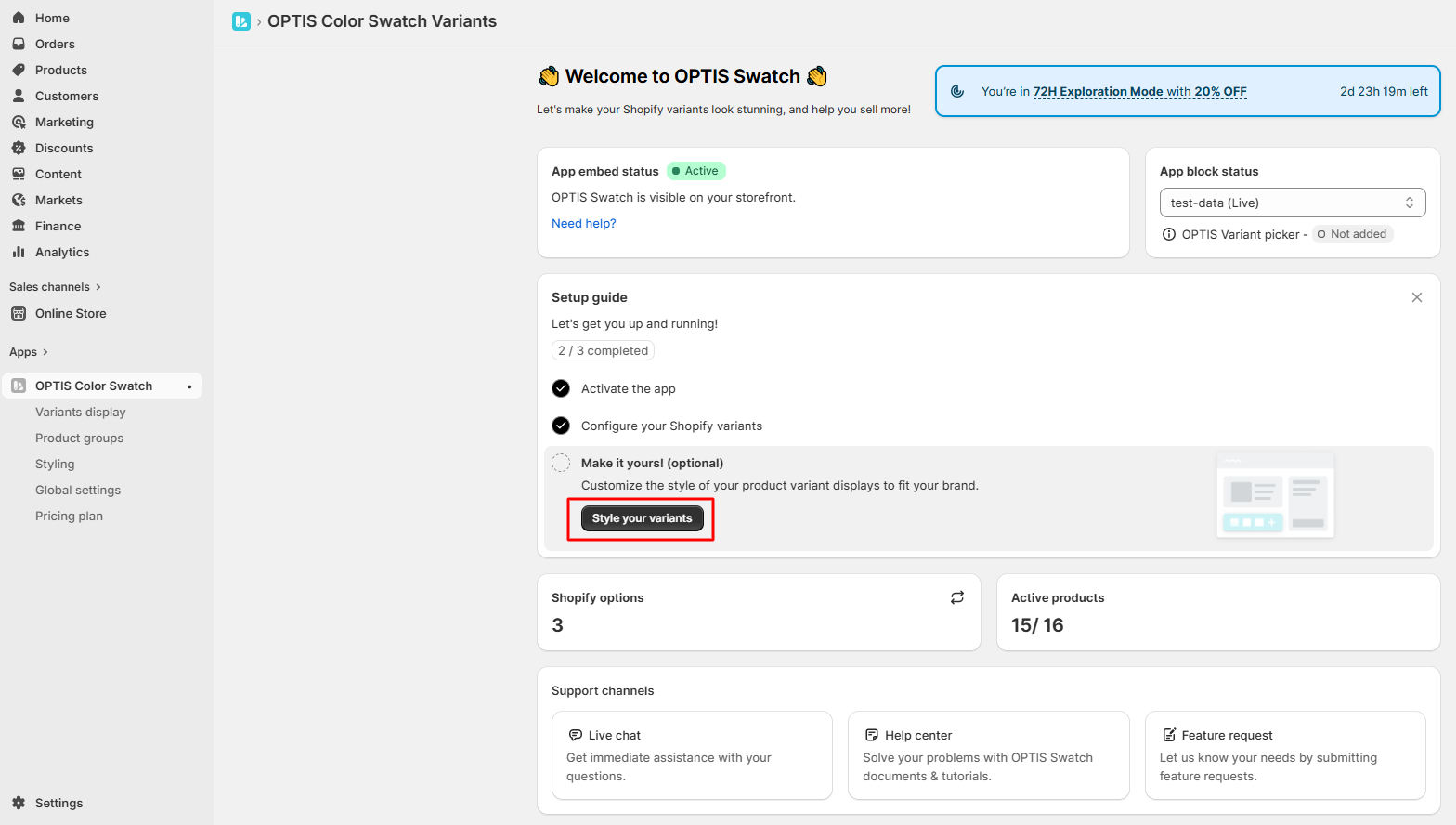
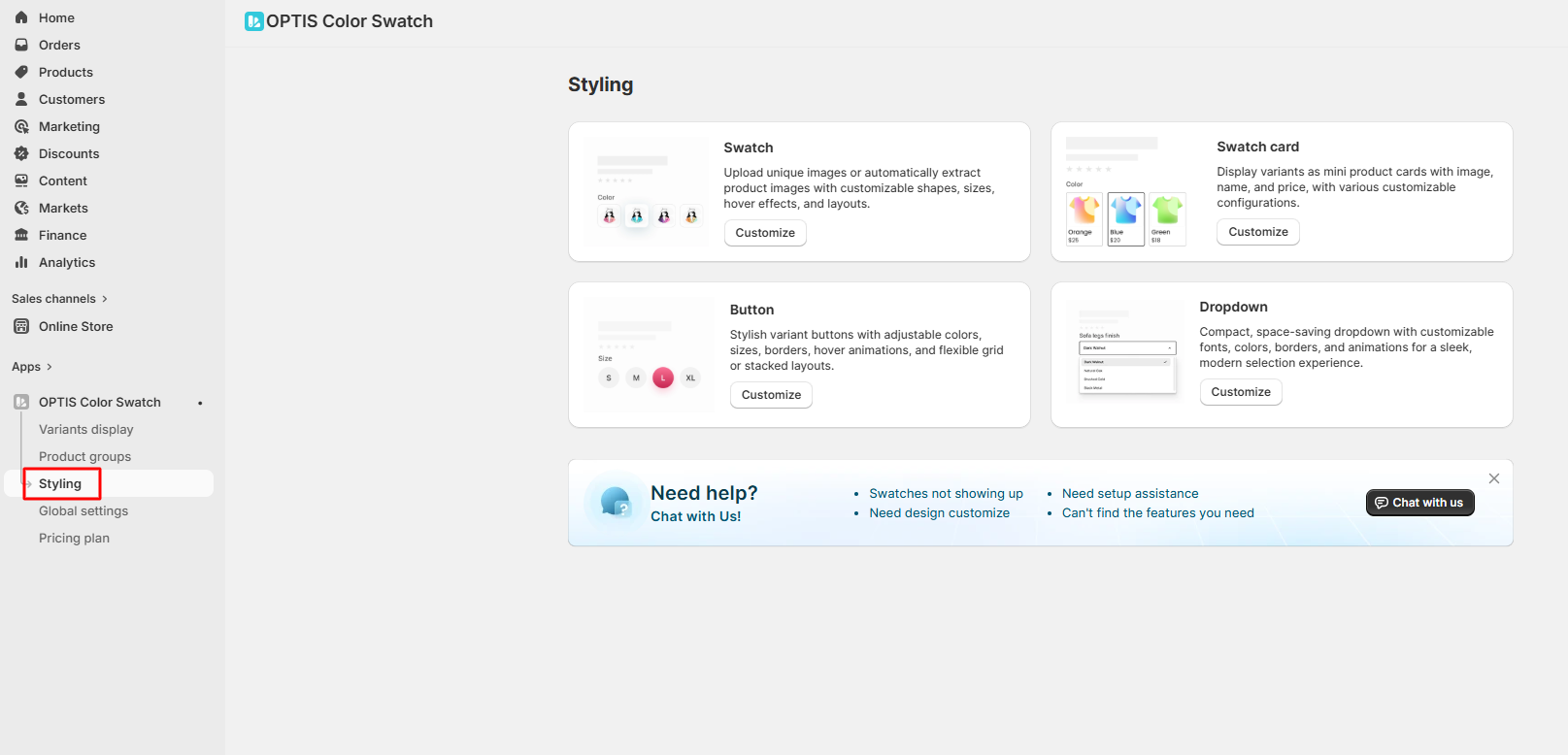
* Click **Style your variants** to open the **Styling Dashboard**
* Customize how variants look on your store, including size, alignment, colors, spacing, hide extra swatches,...
👉 **Click here to learn** [**How to customize the swatches' look**](/swatch/frequently-asked-questions/is-it-possible-to-customize-how-swatches-look.md)
{% endstep %}
{% endstepper %}
You're all set! 🎉\
Continue to the next sections to explore advanced settings and customization options.