> For the complete documentation index, see [llms.txt](https://docs.optis.me/llms.txt). Markdown versions of documentation pages are available by appending `.md` to page URLs; this page is available as [Markdown](https://docs.optis.me/swatch/frequently-asked-questions/how-to-have-swatch-change-image-upon-clicking.md).
# How to have swatch change image upon clicking?
Some merchants may want the custom options created in our Product Options app (such as swatches, dropdowns) to change the main product image when selected. Unfortunately, OPTIS does not currently support changing product images based on these custom options.
**Alternative Solution: Use both the Product Options app and a Swatch app together**
To achieve both image-changing swatches and additional product options, we recommend combining two apps:
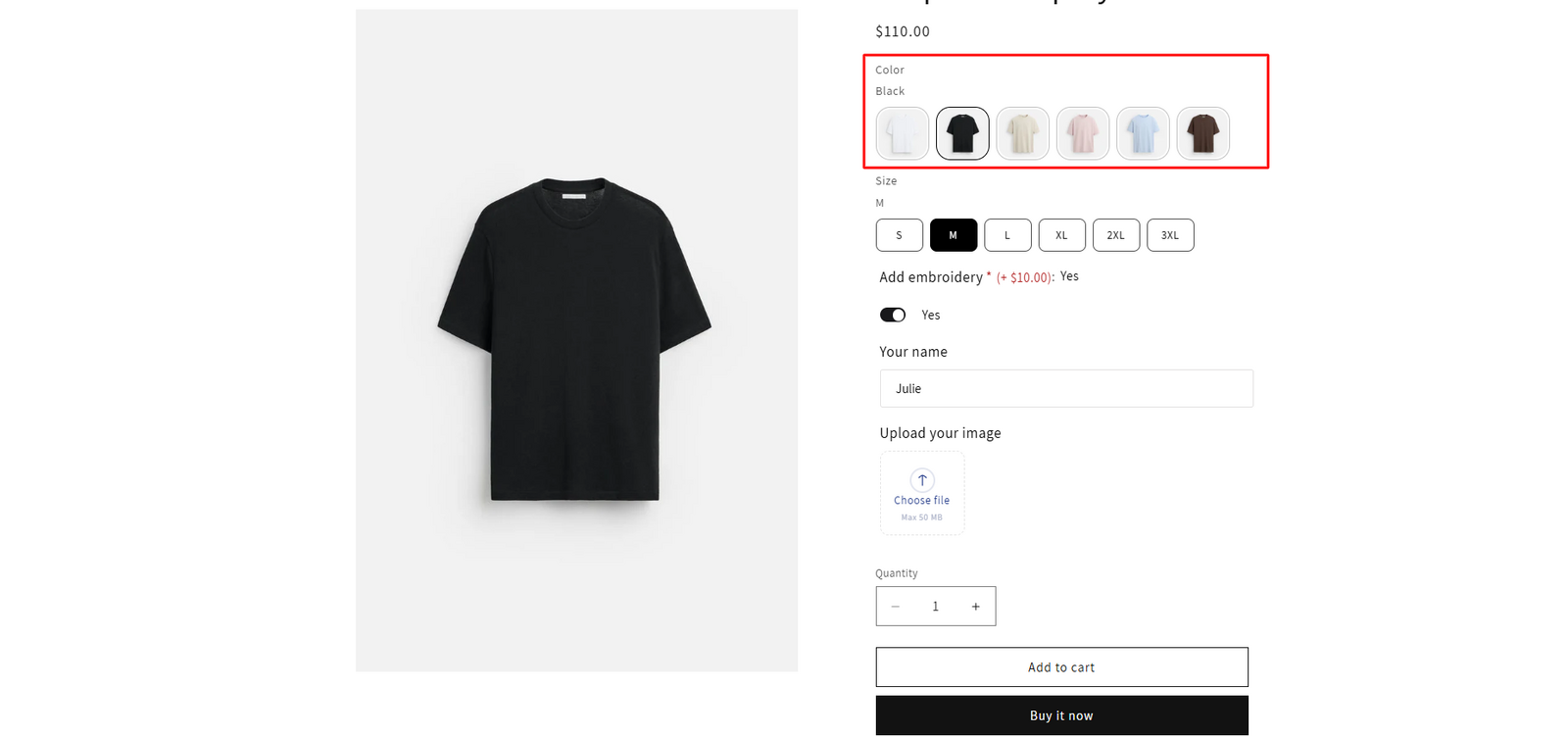
1. **Use the Swatch app** to display color swatches or buttons that change the product images when clicked. The swatch app will enable you to have feature change image while selecting options
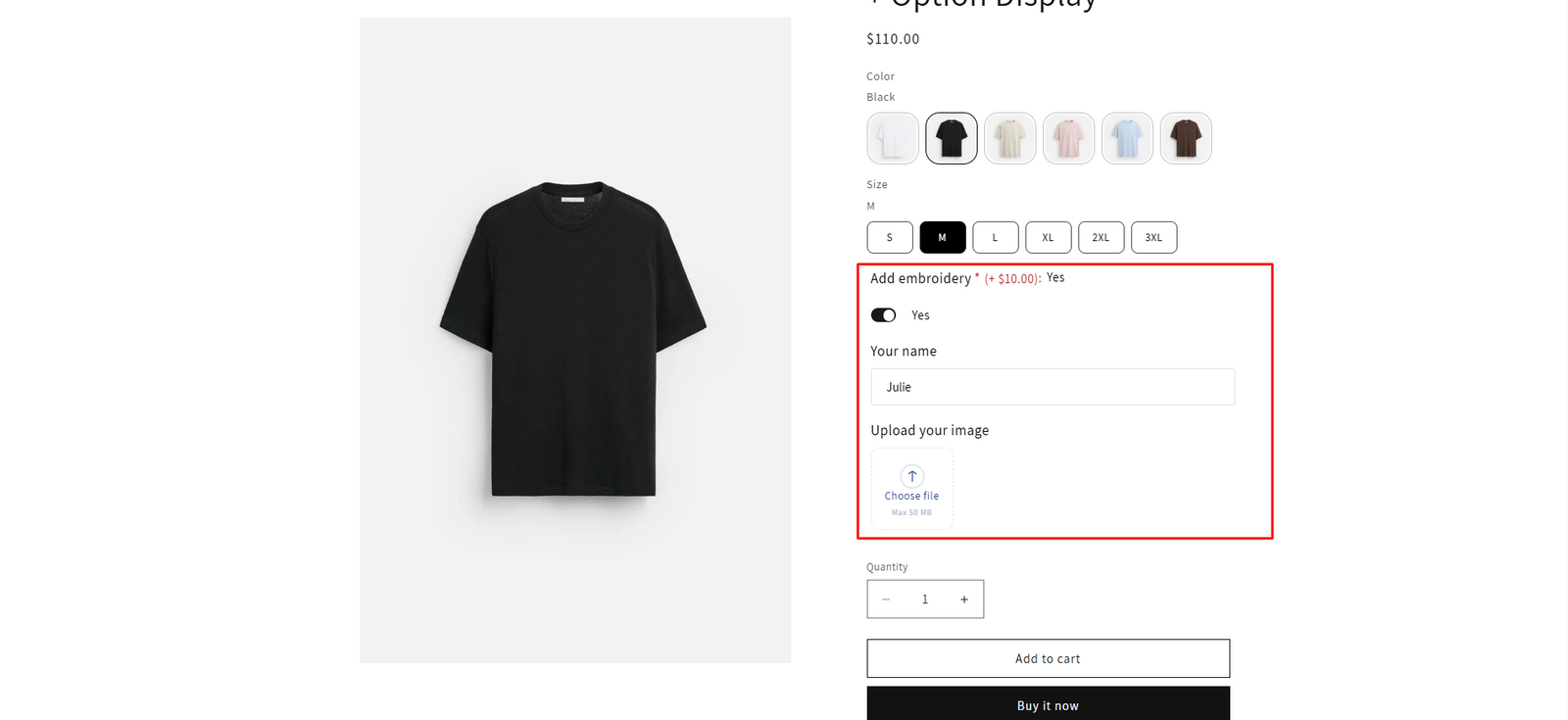
2. **Use our Product Options app** to add any other custom options (such as text boxes, file upload, checkboxes, etc.).
**Example Store (Password: 1):**