> For the complete documentation index, see [llms.txt](https://docs.optis.me/llms.txt). Markdown versions of documentation pages are available by appending `.md` to page URLs; this page is available as [Markdown](https://docs.optis.me/swatch/frequently-asked-questions/how-can-i-make-swatch-options-change-the-main-product-image-when-clicked.md).
# How can I make swatch options change the main product image when clicked?
To enable swatch options to change the main product image, you need to do 2 things:
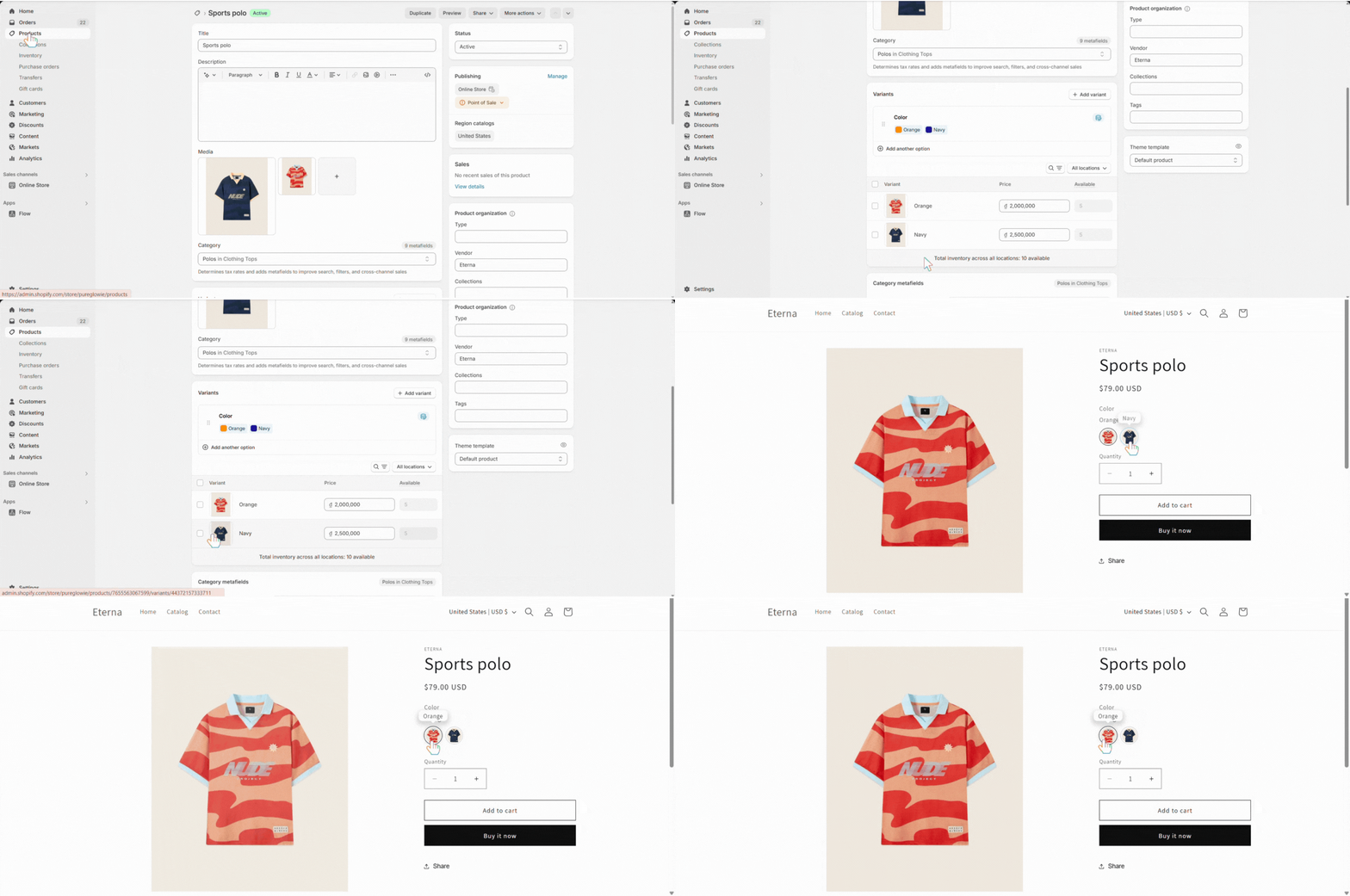
### **✅ Step 1: Make sure you’re using Shopify’s built-in product variants**
OPTIS Color Swatch only works with **native Shopify variants**, meaning the product options (like Color or Size) must be created directly in your **Shopify Products admin**, not from a custom option app.
When each variant has its own image assigned in Shopify Products, OPTIS Color Swatch will automatically update the product image when the customer clicks on a swatch.
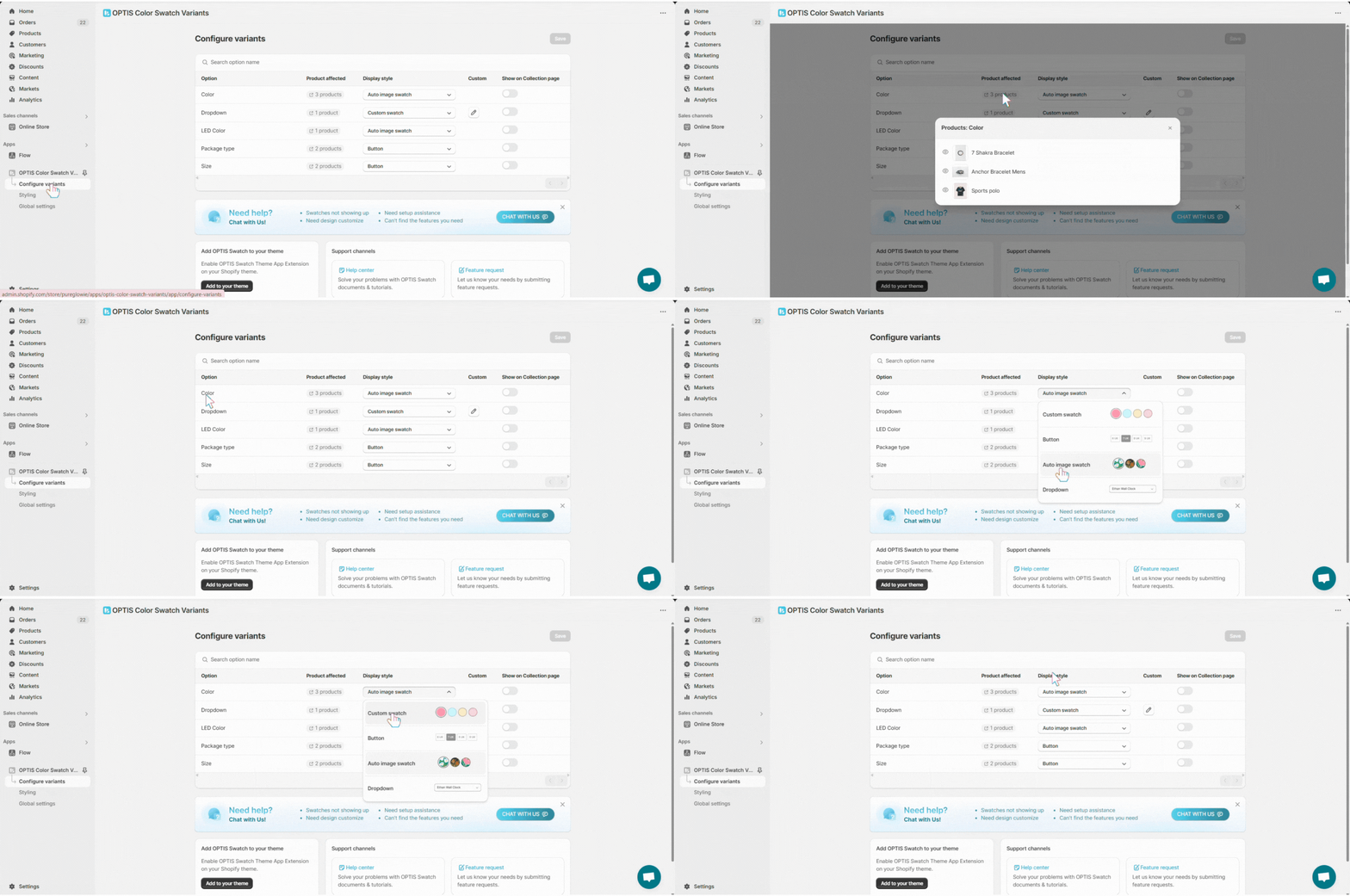
### **✅ Step 2: Set the Display Style to Custom Swatch or Auto Image Swatch**
Go to page Configure variants > Find your targeted options > Choose the Display Style as [***Custom Swatch***](/swatch/variant-display/custom-swatch.md) or [***Auto-image Swatch***](/swatch/variant-display/auto-image-swatch.md)
#### What are Custom Swatch & Auto-image swatch?
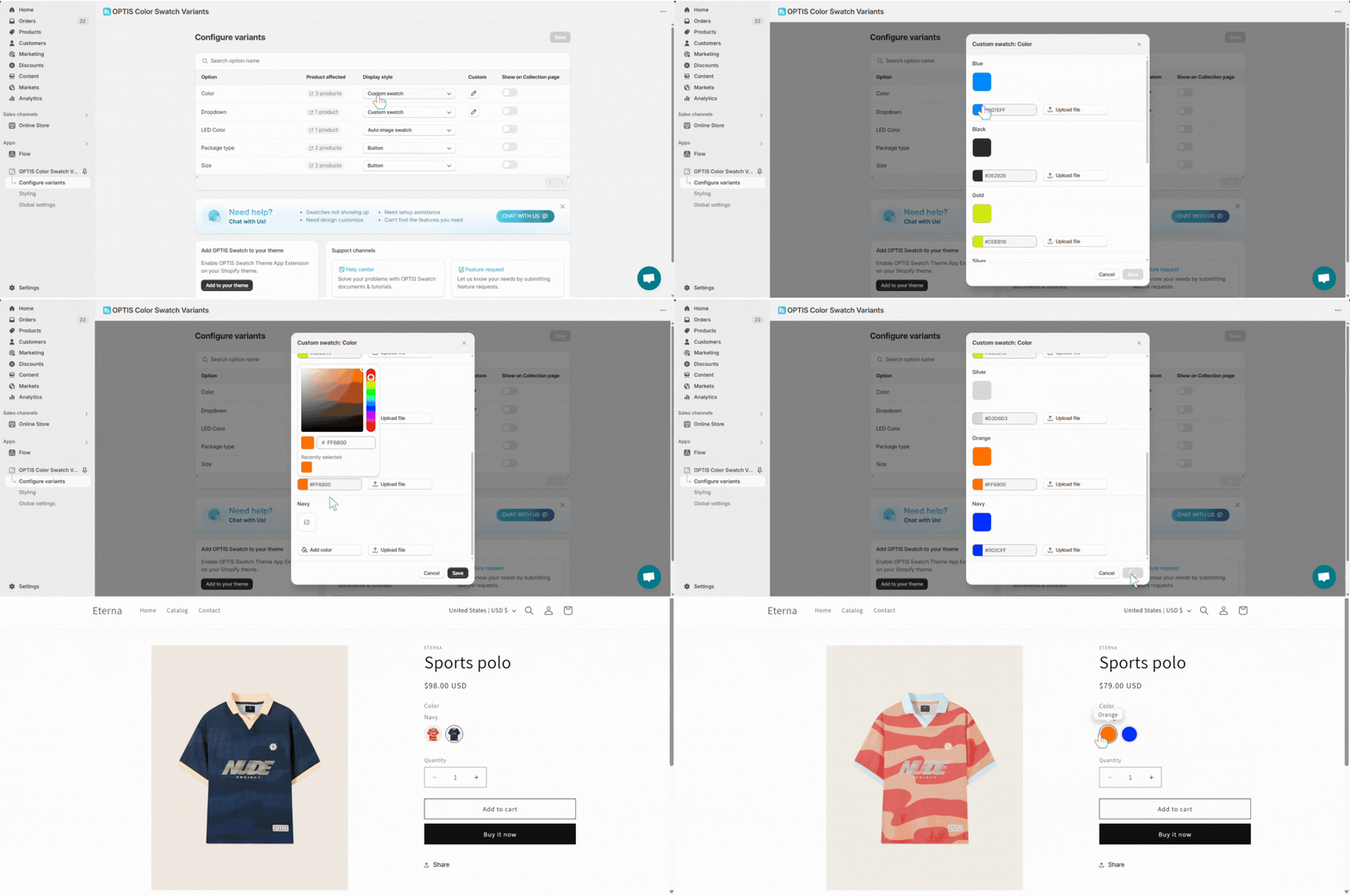
**a. Custom Swatch:**
What is it: You can either assign a custom color or upload a custom image (e.g., texture, icon, or even a GIF) for each option.
**Works best for:** When you want full control over how each swatch appears, especially in cases where:
* You want to **override** the default variant image set in your Shopify product admin.
* You want to display a **different visual cue** (e.g., zoomed-in texture, logo, or animated image) instead of or in addition to the variant image.
* You prefer to **visually differentiate options** using custom visuals, whether it's **a solid color** or a **unique uploaded image/GIF**.
\=> This setup is ideal for merchants who want to **separate the swatch appearance** from the product variant image.
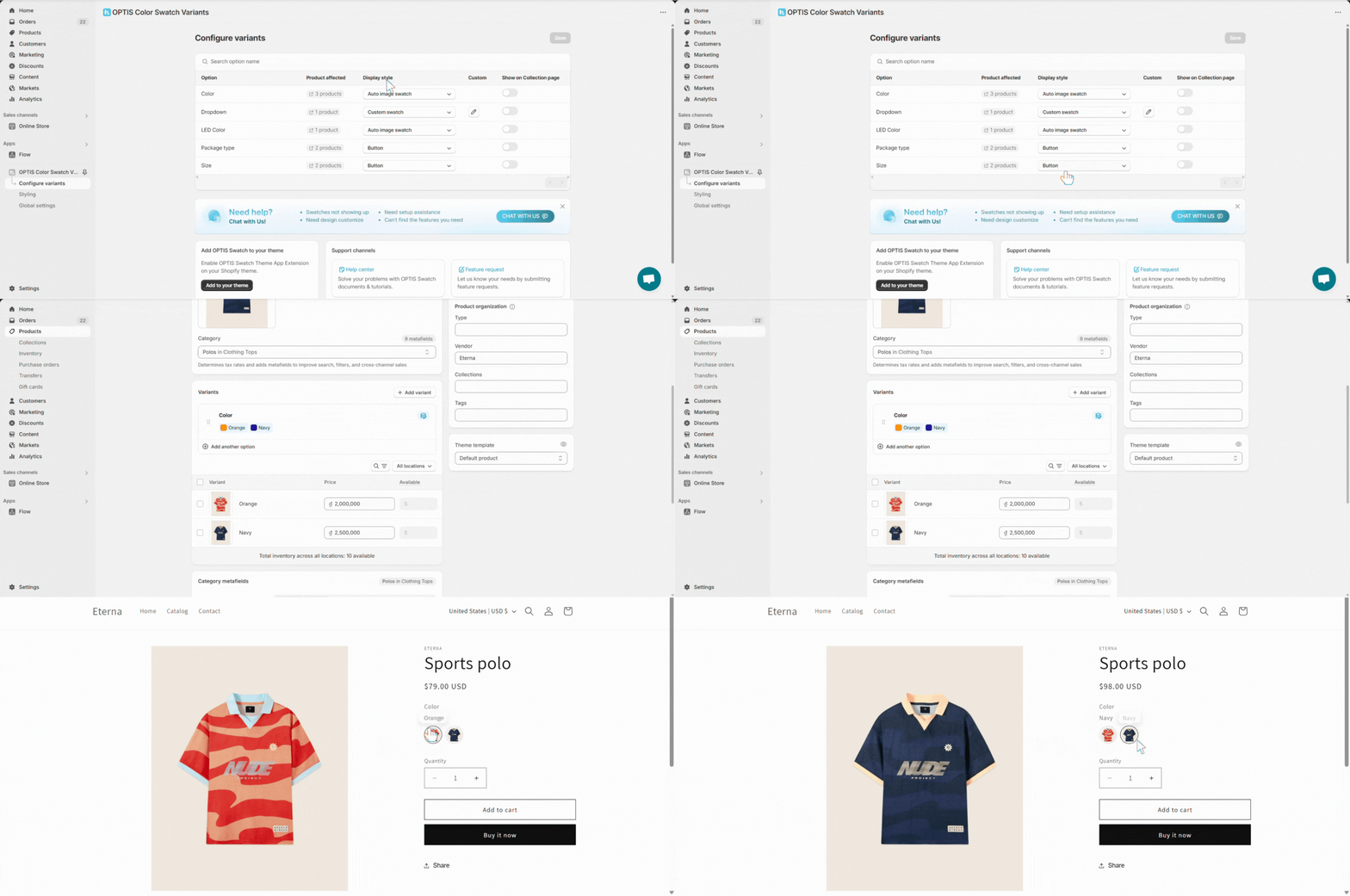
**b. Auto Image Swatch**
What is it: OPTIS Color Swatch automatically pulls the image from each Shopify variant and displays it as the option swatch.
**Works best for:** Quick and efficient setup. No manual upload needed, just assign a variant image in your Shopify admin, and it will:
* Show up as the swatch preview.
* Also control the main product image when selecte
\=> This style is perfect if your variant images are already set up and you want a **fast, hands-off solution** that stays in sync with your product data.