> For the complete documentation index, see [llms.txt](https://docs.optis.me/llms.txt). Markdown versions of documentation pages are available by appending `.md` to page URLs; this page is available as [Markdown](https://docs.optis.me/product-options/20-option-types/swatch-and-button/swatch.md).
# Swatch
✨ [Demo store](https://optis-product-options-variant.myshopify.com/products/swatch?variant=51025989075222)
### 1. How Does the Swatch Display?
The Swatch option allows customers to select choices visually using images, colors, or labels instead of traditional dropdowns or checkboxes. This enhances the shopping experience, especially when product customization involves selecting colors, styles, or materials.
Example of how it appears on a product page:
* Customers can click on color blocks or image thumbnails to select options such as T-shirt color, fabric, etc.
### 2. How to Create a Swatch
**Step 1: Add a New Option**
* Open **1. Add options**, click **Add option**, tick **Swatch** under **Swatch** on the **New options** tab, then click **Add options**.
**Step 2: Add information to the Swatch**
* Enter an option name (e.g., "Choose Color", "Select Fabric", "Pick a Finish")
* Add option values (e.g., Red, Blue, Black, White)
* Show option value label if needed
* Tick on “Required field” if you want customers must choose the option before checking out.
* Tick on "Hide option label” if you don’t want to show the option name above the option values.
* For each value, you can:
* Choose a color swatch (solid color)
* Upload an image swatch (custom image)
Other features:
* Price add-on > Extra fee – [What is it & How to Use](https://www.youtube.com/watch?v=5Bq4t0IrVEU)
* Price add-on > Upsell product – [What is it & How to Use](/product-options/advanced-setup/how-to-use-upsell-product-link-stock-and-price-of-shopify-variant-to-option-value.md)
* SKU – [What is it & How to Use](https://www.shopify.com/ca/retail/what-is-a-sku-number)
* Quantity – [What is it & How to Use](/product-options/advanced-setup/how-to-use-the-quantity-feature-for-options.md)
**Step 3: Advanced Settings (If Needed)**
{% hint style="success" %}
**Visibility:** Enable visibility (conditional logic) if you want the Swatch to show/hide only when a customer selects a specific option from another field. [How to set up Conditional logic?](/product-options/advanced-setup/other-popular-features/how-to-set-up-conditional-logics.md)
{% endhint %}
{% hint style="success" %}
**Help text:** Add a short description to explain the purpose of the Swatch option. It can be displayed as Tooltips or Content (Below/Beside the option title, Below the option).
{% endhint %}
{% hint style="success" %}
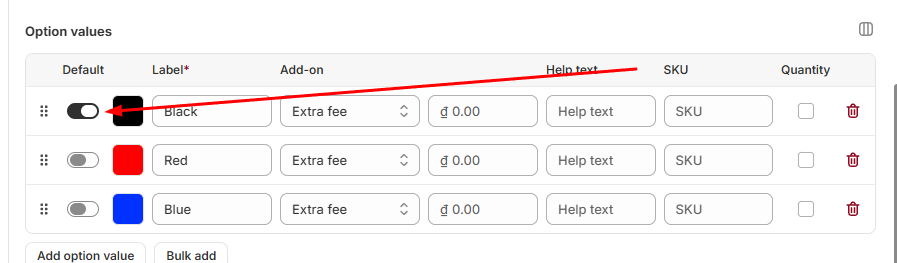
**Default value:** Pre-select the Swatch options every time the customer goes to the site. It can save time for customers by providing common or expected choices.
{% endhint %}
Example: You want the option value “Black” on Color to be selected automatically when customers enter the product page.
How it looks like in your storefront:
{% hint style="success" %}
**Quantity:** Lets customers choose how many units of each value they want. Turn on the **Quantity** column for the values that need it (use **Columns** in the **Option values** table), then set **Min quantity** and **Max quantity** to limit the total quantity across all values. Learn more in [How to use the Quantity feature](/product-options/advanced-setup/how-to-use-the-quantity-feature-for-options.md).
{% endhint %}
{% hint style="success" %}
**Live Mockup:** Allows customers to preview their selections in real time. You can **customize** the preview to help customers visualize how their selected options will look on the final product. [Product Personalizer - Live Mockup Settings](/product-options/advanced-setup/other-popular-features/product-personalizer-live-mockup-settings.md)
{% endhint %}
**Step 4: Save and Test**
* Click Save to apply the settings.
* Visit the product page on your store to check if the Swatch option works correctly.
### 3. Real-World Applications of Swatch
* Color selection for apparel
* Material choice for furniture
* Pattern/texture selection for home décor
* Visual product personalization (e.g., monogram styles)
### 4. Key Features of Swatch
* Allows users to select **one option** from a predefined list.
* Ensures clear and exclusive selections.
* Ideal for displaying multiple option values.
* Helps save space and maintain a **clean, organized design**.