> For the complete documentation index, see [llms.txt](https://docs.optis.me/llms.txt). Markdown versions of documentation pages are available by appending `.md` to page URLs; this page is available as [Markdown](https://docs.optis.me/product-options/20-option-types/choice-list/radio-button.md).
# Radio Button
✨ [Demo store](https://optis-product-options-variant.myshopify.com/products/radio-button?variant=51025988550934)
### 1. How Does the Radio Button Display?
The Radio Button option displays as a small circular icon next to a label, allowing users to select only one choice from a list of options. Once a user selects a radio button, any previously selected option is automatically deselected. This ensures a single, definitive answer.
Example of how it appears on a product page:
### 2. How to Create a Radio Button
**Step 1: Add a New Option**
* Click Add Option > Radio button to create a new option
**Step 2: Add information to the Radio button**
* Enter an option name for the Radio Button (e.g., "Customize Your Candle", "Choose Scent")
* Add the option values (e.g., Lavender, Vanilla, Citrus, Rose, Coconut, Eucalyptus)
* Tick on “Required field” if you want customers must choose the option before checking out.
* Tick on "Hide option label” if you don’t want to show the option name above the option values
Other features:
* Price Add-On > Create Fee – [What is it & How to Use](https://www.youtube.com/watch?v=5Bq4t0IrVEU)
* Price Upsell product > Assign to Variant – [What is it & How to Use](/product-options/advanced-setup/how-to-use-upsell-product-link-stock-and-price-of-shopify-variant-to-option-value.md)
* SKU – [What is it & How to Use](https://www.shopify.com/ca/retail/what-is-a-sku-number)
* Quantity – [What is it & How to Use](/product-options/advanced-setup/how-to-use-the-quantity-feature-for-options.md)
**Step 3: Advanced Settings (If Needed)**
{% hint style="success" %}
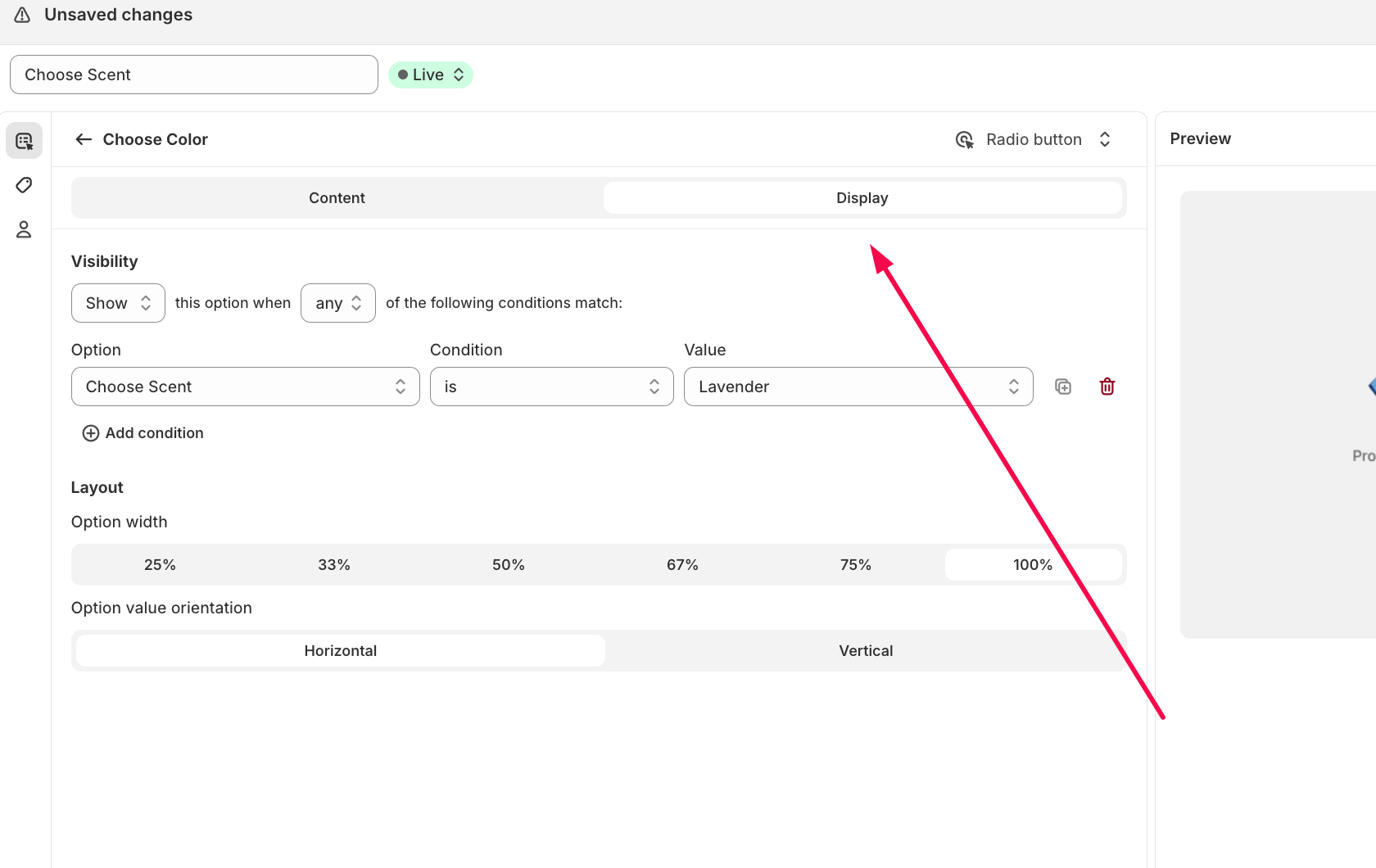
**Conditional Logic:** Enable conditional logic if you want the Radio button to show/hide only when a customer selects a specific option from another field. [How to set up Conditional logic?](https://optis-options-helpdesk.crisp.help/en/article/how-to-set-up-conditional-logics-1dgigop/)
{% endhint %}
{% hint style="success" %}
**Help text:** Add a short description to explain the purpose of the Radio button option. It can be displayed as Tooltips or Content (Below/Beside the option title, Below the option).
{% endhint %}
{% hint style="success" %}
**Default value:** Pre-select the Radio button options every time the customer goes to the site. It can save time for customers by providing common or expected choices.
{% endhint %}
**Step 4: Save and Test**
* Click Save to apply the settings.
* Visit the product page on your store to check if the Radio Button option works correctly.
### 3. Real-World Applications of Radio button
Radio buttons are ideal for making single, decisive selections when only one option can apply:
* Product Variations: Select one size, color, or material per product.
* Shipping Methods: Choose between standard, express, or same-day delivery.
* Surveys & Forms: Answer yes/no questions or pick one option from a list.
### 4. Key Features of Radio button
* The Radio button let users choose only one option from a predefined list, ensuring clear, exclusive selections. When displaying many option values, they can be arranged in a single line or inline layout to save space and maintain a clean, organized design.