> For the complete documentation index, see [llms.txt](https://docs.optis.me/llms.txt). Markdown versions of documentation pages are available by appending `.md` to page URLs; this page is available as [Markdown](https://docs.optis.me/product-options/20-option-types/choice-list/font-picker.md).
# Font Picker
✨[Demo store](https://optis-product-options-variant.myshopify.com/products/font-picker-custom-backpack-copy?variant=51026044256534)
### Overview
Font Picker allows customers to **choose a font style for their personalized text** directly on the product page.
When Font Picker is used together with a **Text Input option**, the text entered by the customer will **update instantly when a different font is selected**. This creates a **live preview effect**, helping customers clearly visualize how their personalization will look before adding the product to cart ✨
### 🔧 How to Set Up Font Picker
**Step 1: Add a New Option**
* Click Add Option > Font picker to create a new option
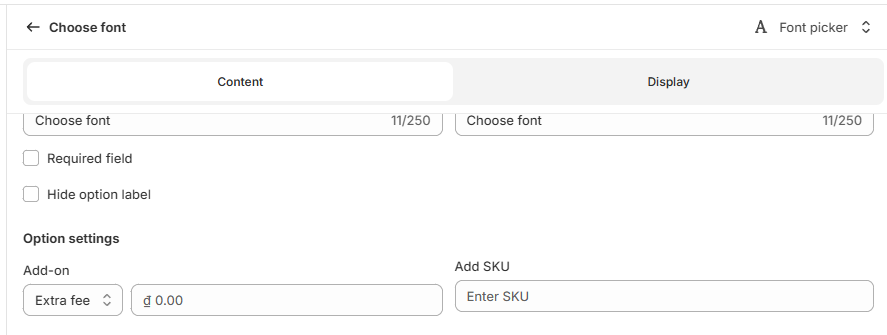
**Step 2: After adding the Font Picker option, configure its settings as follows:**
**Option Name:** Enter a clear label for the Font Picker that will be displayed on the product page (e.g.: "Choose font"; "Font style"; "Select font";...)
**Option Values:** Choose the fonts you want to make available to customers. You can:
* Select **All fonts** to allow customers to choose from all available Google Fonts
* Or select **specific fonts** from the existing list
{% hint style="warning" %}
**Note:**\
Currently, the app does not support uploading custom fonts directly. However, we do offer a custom solution - simply send us the font link, and our team will help you set it up.
{% endhint %}
**Option Display:** Choose how the font options are displayed on the product page: Dropdown / Button (horizontal) / Button (vertical)
Other features:
* Price Add-On > Create Fee – [What is it & How to Use](https://www.youtube.com/watch?v=5Bq4t0IrVEU)
* Price Upsell product > Assign to Variant – [What is it & How to Use](/product-options/advanced-setup/how-to-use-upsell-product-link-stock-and-price-of-shopify-variant-to-option-value.md)
* SKU – [What is it & How to Use](https://www.shopify.com/ca/retail/what-is-a-sku-number)
**Step 3 (Optional): Connect Font Picker with a Text Input**
If you want customers to see their text update in the selected font while typing, you can connect the Font Picker with a **Text Input** option.
Before doing this, make sure you already have a Text Input option created. You can follow the guide [**How to create a Text Input**](/product-options/20-option-types/text-input.md) if needed.
To link the two options:
* In **Font preview in text fields,** click on the dropdown **Select text fields**
* You will see a list of available Text Input options
* Select the Text Input you want to connect with this Font Picker
Once connected, the text entered by customers will automatically update when they change the font selection.
{% hint style="warning" %}
**Note:**\
Text fields that are disabled in the list are already being used by another Font Picker. Each Text Input can only be linked to **one** Font Picker at a time.
{% endhint %}
**Step 4: Advanced Settings (If Needed)**
{% hint style="success" %}
**Conditional Logic:** Enable conditional logic if you want the Font picker to show/hide only when a customer selects a specific option from another field. [How to set up Conditional logic?](https://optis-options-helpdesk.crisp.help/en/article/how-to-set-up-conditional-logics-1dgigop/)
{% endhint %}
{% hint style="success" %}
**Help text:** Add a short description to explain the purpose of the Font picker option. It can be displayed as Tooltips or Content (Below/Beside the option title, Below the option).
{% endhint %}
{% hint style="success" %}
**Default value:** Pre-select the Font picker options every time the customer goes to the site. It can save time for customers by providing common or expected choices.
{% endhint %}
**Step 5: Save and Test**
* Click Save to apply the settings.
* Visit the product page on your store to check if the Font picker option works correctly.
### 🌟 Key Benefits
* **Real-time text preview -** The text inside the textbox updates immediately when the font changes
* **Clear visual understanding -** Customers can see how the same text looks in different fonts before deciding
* **Better personalization experience -** Especially useful for names, initials, or short messages
* **More confident purchasing decisions -** Reduces uncertainty and increases conversion